

Overview
First configure Unify’s Salesforce integration and its task sync rules. The steps below connect Orum to Salesforce. You can bidirectionally sync your call tasks between Unify and Orum using a Salesforce report. The instructions below will help you build a report to successfully set up the sync.Salesforce report setup
Call report setup in Salesforce
To create call tasks in Salesforce, set up a new report with the following criteria:- Navigate to your Salesforce Reports tab
- Click New Report
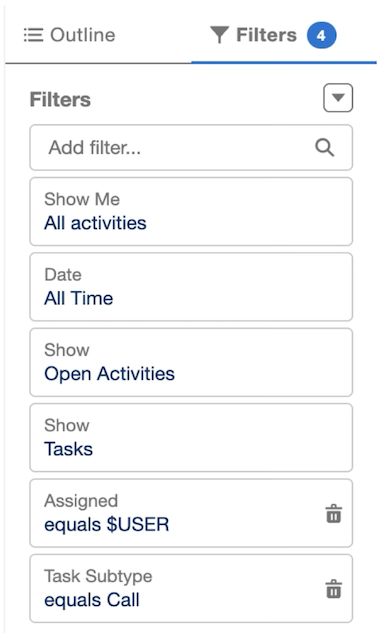
- Configure the report with these settings:
- Category: Activities (Activities with Contacts)
- Show Me: All activities
- Date: All Time
- Show: Open Activities
- Show: Tasks
- Assigned: equals $USER
- Task Subtype: equals Call
These report filters ensure that each user in Orum only sees their own open call tasks
Best practices for report columns
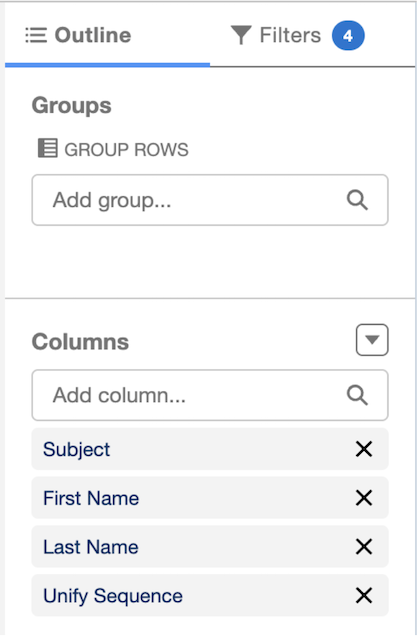
We recommend including the following columns in your report for better visibility and alignment with Unify sequences:- Click Customize on your report
- Add the following columns:
- Subject
- First Name
- Last Name
- Unify Sequence
Orum integration setup
Once your Salesforce report is ready, connect Orum to Salesforce:- Navigate to Settings in Orum
- Select Integrations
- Choose Salesforce and authorize the connection
You will need admin access to Salesforce to authorize this connection. For more information, see: Orum admin setup.
Next steps
With your Salesforce integration configured and Orum connected, you’re ready to launch your first call campaign!Need help with the setup? Contact our support team or refer to Orum’s Salesforce documentation for additional assistance.